Microsoft’s Copilot+ PC has taken AI and productivity to the next level. Using a range of smart, AI-driven features, these laptops will help you work smarter and more efficiently. One of the standout features of Copilot + PCs is Click to Do. In this guide, we’ll take you through the Click to Do feature and what it can do for you.
What is Click to Do?
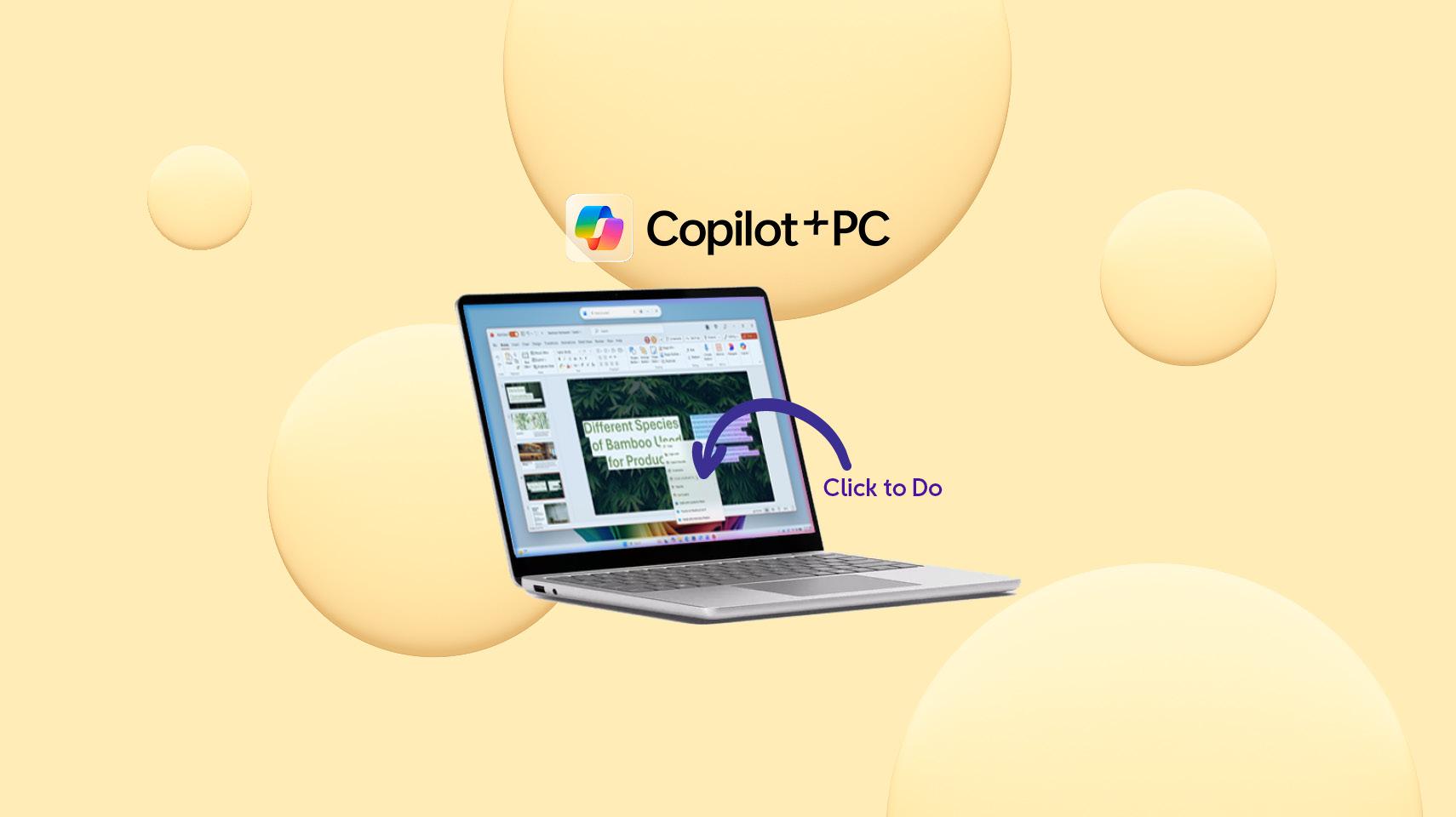
Click to Do is a nifty feature on Copilot+ PCs that helps you in both your work and your day-to-day browsing. When activated, it creates an overlay on your screen, analysing text and images to give you a range of actions without switching apps or going through additional menus. The type of actions available change depending on whether its text or visual content.
Click to Do is a Windows 11 AI feature that creates an overlay on your screen, analysing text and images to suggest a range of actions without switching apps or navigating additional menus. The type of actions available changes depending on whether it’s text or visual content. This nifty feature will help you in both your work and day-to-day browsing.
How to access Click to Do
There are a few different ways to access Click to Do:
Hold down the Windows key and left-click with your mouse or trackpad
Hold down the Windows key and Q
Swipe right on touch-enabled laptops/PCs
Search for Click to Do in the Windows Search
Open the Snipping Tool
When you launch Click to Do for the first time on your Copilot+ PC, you’ll be offered a quick tutorial to familiarise yourself with everything this feature can do for you.

What can Click to Do assist with?
Click to Do helps you do more with both text and image-based content. Here are some of the top actions it can perform:
Highlighted text: Click to Do gives you the option to copy to clipboard, open text in a text editor or do a search for the selected text on Microsoft Edge or Bing
Highlighted email address: Click to Do gives you the option to copy the email address, send an email using your default email app, send a message to that email with Teams or schedule a meeting with Teams.
- Select an image: Click to Do gives you the option to copy to clipboard, save, share, open in photo-related apps, do a visual search, blur the background, erase objects or remove the background.
When highlighting text, if your default language is English, you’re signed into a Microsoft account and you select more than 10 words, this unlocks a whole range of additional Click to Do actions, including:
Summarising the main points of the selected text
Creating a bulleted list of the main points
Rewriting text with a more casual or formal tone
Rewriting text and making grammatical improvements
Sending the text to Copilot in Word
Practising reading the text out loud with Reading Coach
Reading distraction-free with the Immersive Reader
Is Click to Do available on all Windows laptops?
No, Click to Do is only available on Copilot+ PCs. These are the system requirements for Click to Do to work on your laptop:
40 TOPS NPU (neural processing unit)
16 GB RAM
8 logical processors
256 GB storage capacity
Recommended Copilot+ PCs
If you’re unfamiliar with Copilot+ PCs, these are the smartest and fastest Windows laptops yet. They are designed for efficiency and productivity, with every smart feature created to help you maximise your time, whether you’re crunching numbers for work or creating the most detailed holiday itinerary possible. Powered by the Snapdragon X Elite processor, they can perform 40 trillion operations per second and, with a long-lasting battery life of up to 19 hours*, your train of thought won’t get broken by a panicked dash for your charger.
* Based on web browsing workload. Battery life varies significantly by device and with setting, usage and other factors. See aka.ms/windowsperformancelab.
Thinking about moving to Copilot+ PC? Here are our top recommendations: